Bluewhite64 is a fast 64 bit version of Slackware Linux. It is quite customizable and functional when installed on a bootable USB flash drive. This section covers steps for preparing a USB flash memory device and installing system files to it. Though illustrating a Bluewhite64 "frugal" installion, the procedure works with any live Linux distribution.
Here are step-by-step instructions for installing Bluewhite64 to USB.
Supplies needed are:
- The latest Bluewhite64 Linux distribution.
- A USB flash memory stick, at least 4GB in size (must hold the OS plus your data files)
Important: Make sure your computer\'s boot sequence (in BIOS Settings) lists CD/DVD devices prior to USB devices, and then your hard drive.
- Download the Bluewhite64 Linux ISO file (or the USB package) onto your hard drive.
- Download
grubfolder.zip, unzip it, and open "menu.lst"
in a text editor. Scroll to the bottom of the file
and remove (or comment out) the title, kernel, and
boot lines for systems you don\'t have. For example,
if you are going to use only Bluewhite64, delete the
Knoppix, SLAX, and Backtrack entries. Save and close the edited
file. The "grub" folder will be used in step 9, on the next page.
title Bluewhite64 12.2 root (hd0,0) kernel /boot/vmlinuz vga=791 ramdisk_size=8888 root=/dev/ram0 rw quiet noauto autoexec=startx initrd /boot/initrd.gz boot - If using the Bluewhite64 ISO file, burn it onto a blank DVD.
- Reboot into the newly burned live Linux disc.
- When the system is up, insert the flashdrive.
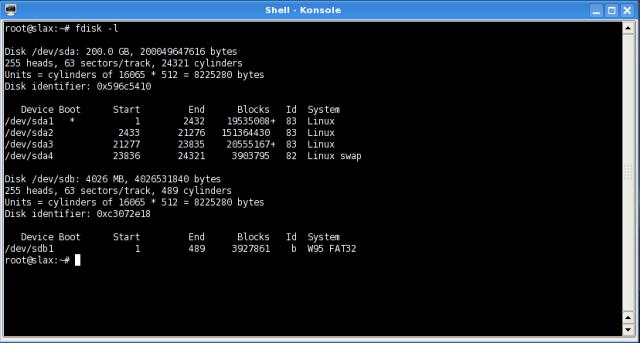
- Open a console ("Konsole" if you are using the KDE desktop), and type "fdisk -l" and read the list of drives and partitions. CAREFULLY IDENTIFY THE FLASH DRIVE! In this example, it is "sdb."
- Use Gparted (or QTParted) to reformat the flashdrive, and make it bootable. Select the FAT32 filesystem as the first or only partition if you want compatability with computers running Windows. If you want a separate partition for encryption, invisibility from Windows, or other features, set it up as a second partition after the FAT filesystem.
© 2005 - 2024 AB9IL.net, All Rights Reserved.
About Philip Collier / AB9IL, Commentaries and Op-Eds, Contact, Privacy Policy and Affiliate Disclosure, XML Sitemap.
This website is reader-supported. As an Amazon affiliate, I earn from qualifying purchases.