Continuing the Bluewhite64 USB Installation, we now install GRUB and system files onto the flashdrive:
- Copy the contents of the Bluewhite64 DVD (or extracted USB package)
onto the flashdrive. Specifically, copy the "boot" and "Bluewhite64" folders.
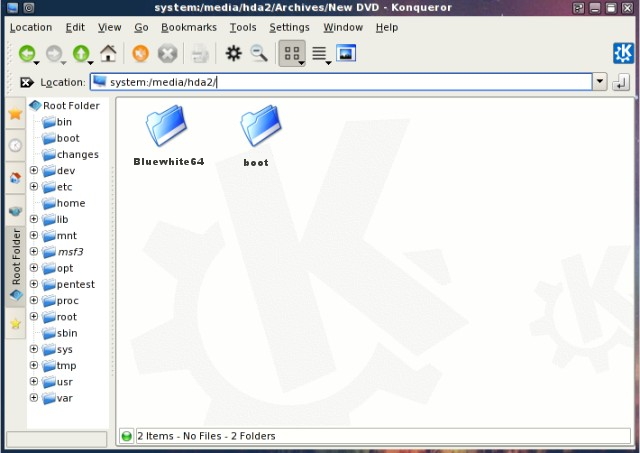
- Copy the "grub" folder (from step 2, unziped) from your hard drive into the flashdrive\'s "boot" folder.
- Open a console and type "grub."
- Within grub, type "find /boot/grub/menu.lst" and
note the location of the flashdrive boot directory as
seen by the operating system for example: sd1,0.
grub> find /boot/grub/menu.lst

(sd0,0)
(sd1,0)
Note: In Linux, drive numbers start at zero.
- Next, type "root" followed by a space and the
drive within parenthesis, for example: "root (sd1,0)"
and note no error messages.
grub> root (sd1,0)

Filesystem is fat, partition type is 0xC
Now we have specified the flash drive (sd1), so GRUB will be installed to the first sector of that device.
- Finally, type "setup" followed by a space and the
drive within parenthesis, for example: "setup (sd0)"
and note no error messages.
grub> setup (sd1)
And GRUB is installed to the flash memory device...Checking if "/boot/grub/stage1" exists...yes Checking if "/boot/grub/stage2" exists...yes Checking if "/boot/grub/e2fs_stage1_5" exists...yes Running "embed /boot/grub/e2fs_stage1_5 (sd1)"... 16 sectors are embedded...succeeded Running "install /boot/grub/stage1 (sd1) (sd1)1+16 p (sd1,0)/boot/grub/stage2 /boot/grub/menu.list"... succeeded Running "install /boot/grub/stage1 d (sd1,0) /boot/grub/stage2 p /boot/grub/menu.lst"... succeeded Done. - Type "quit" to exit grub. Then close the console window.
- Logout and Shutdown your computer.
- Remove the flashdrive and optical disc, then reboot your computer. At this point you are returning to your main system for finishing steps.
- Insert the flashdrive, and navigate to the base directory. To better protect your Linux system folders while in Windows, make them "hidden" via the "FOLDER OPTIONS" dialog.
- Create a regular folder for storing your documents, for example, "My Portable Documents."
- Congratulations, you now have created a bootable flash drive with Bluewhite64 Linux installed. Reboot into the flashdrive and check system operation. Make sure you can open and run the included programs, access the internet, etc.
© 2005 - 2024 AB9IL.net, All Rights Reserved.
About Philip Collier / AB9IL, Commentaries and Op-Eds, Contact, Privacy Policy and Affiliate Disclosure, XML Sitemap.
This website is reader-supported. As an Amazon affiliate, I earn from qualifying purchases.