The VLC media player, short for VideoLan, is a very versatile player for nearly any audio or video format. It is an excellent application for home theater computers, laptops, netbooks, tablet computers, or any Mac, Linux, or Windows device used for multimedia playback. It can even stream media over a local or global network. VLC is the media player of choice due in part to its ease of use on the popular operating systems and its many useful plugins. Movies and audio programming, when used with a high definition audio interface, really sound fantastic in VLC.
As of version 2, VLC includes a very good audio compressor can be set up for ad-hoc playback during one session or configured to run as a default audio setting as shown below. It features conventional threshold, attack / release and ratio settings. Here is a suggestion for general usage - good for streaming content from the internet and also for movies on DVD:
VLC COMPRESSOR SETTINGS
RMS / PEAK:  0
ATTACK:  1.5 ms
RELEASE: 300 ms
THRESHOLD: -20 dB
COMPRESSION RATIO: 3.0 to 1
KNEE RADIUS: 1.0 dB
MAKEUP GAIN: 15.0 dB
These settings are usable in typical listener environments. Sound louder than -20 dB is compressed with a fast attack, fairly fast release. A 3 to 1 compression ratio ensures that listeners can hear sounds at normal levels, without being blasted by loud content. The makeup gain serves to re-normalize the sound levels after the peaks are brought down by compression. Then, comfortable listening levels are set with the system's master volume control (leave VLC volume at 100%). To retain persistent settings, go into the VLC preferences and set parameters in the Audio -> Filters -> Compressor menu.
For systems dedicated to classical music or extremely dynamic content, consider lowering the compression to a range between 1.5 and 2.0 to 1. Adjust the makeup gain so that peaks are restored to full volume.
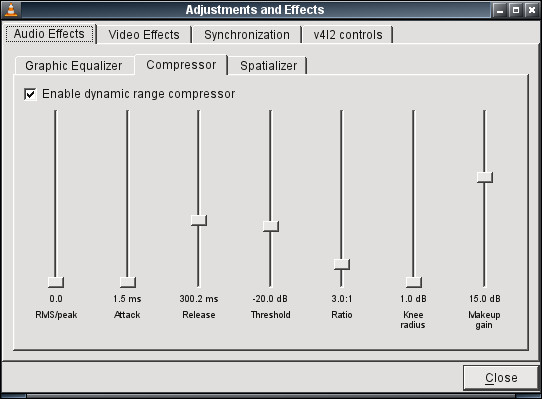
Ad-hoc VLC Compressor Settings
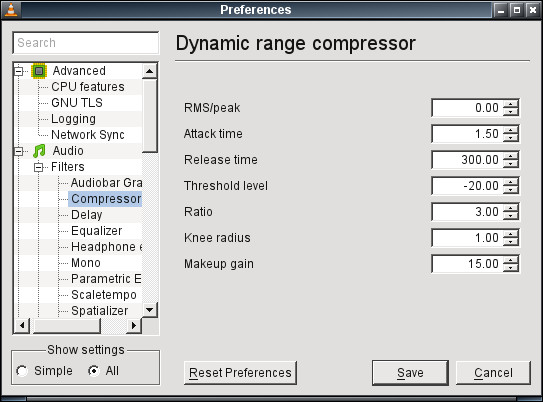
Persistent VLC Compressor Settings
For the best sounding audio playback, consider using a high definition audio interface for playback.
About the VLC Volume Normalizer
One aspect of VLC's flexibility that is not well utilized by many VLC users, at least in versions prior to 2.0, is its ability to manipulate the audio dynamics of the media it is playing. In other words, the Volume Normalizer can be configured to compensate for loud and quiet variations of a movie, podcast, or segment of music. Such a feature is very useful when using VLC in a loud environment: on an airplane, in a busy cafe, in an office area, or on a street. Some VLC users in schools, watching pre-recorded lectures, may need the audio dynamics set to provide clarity in a sound sensitive environment. The audio compression then automatically controls loudness to prevent distraction to others who may be nearby.
Configuring VLC's Volume Normalizer is accomplished by enabling it in the user settings and optimizing the gain and time constant as shown in the illustrated guide below:
- In the menus, open TOOLS --> PREFERENCES and select ALL in the "Show Settings" box.
- Go to the AUDIO menu.
- Set the default audio level to 900. This makes quiet sounds easy to hear, and gain will be automatically reduced by the normalizer during loud sounds.
- Set the replay gain mode to "None" to prevent a gai control conflict with the volume normalizer.
- Enable peak protection.
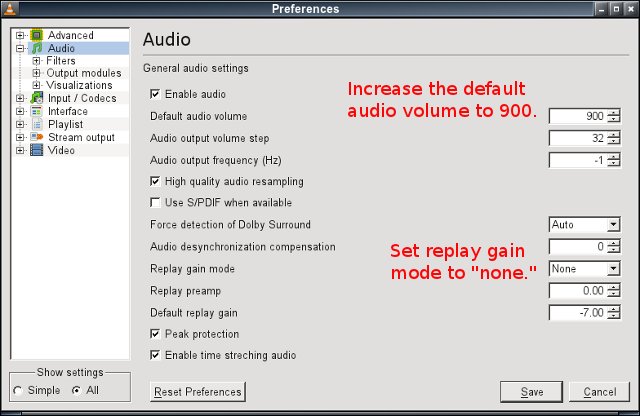
- Go to the AUDIO -->FILTERS submenu.
- Enable VLC's Volume Normalizer.
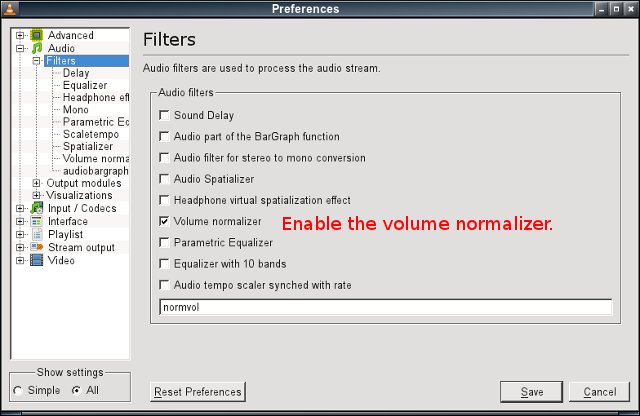
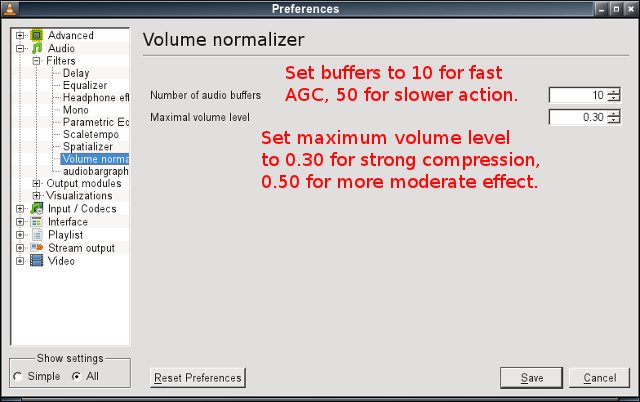
- Go to the AUDIO -->FILTERS -->VOLUME NORMALIZER submenu.
- The audio buffers control the attack / recovery time of the normalizer.
- A count of 10 bufers is good for speech and fast changing sounds, while a count of 50 is suitable for audio content with slower changes.
- The "maximum volume level" controls how much the gain is reduced in relation to the "default" audio level.
- Set maximum volume to 0.30 for strong amplitude compression. A setting of 0.50 provides a more moderated control, while 1.0 does practically nothing.
- Use a typical audio source and experiment with the gain, max volume, and buffers until VLC sounds the way you want it.
- The VLC volume normalizer is not the same as a broadcast quality compressor / limiter, but it does well for non-critical applications.
- DO NOT ADJUST THE VLC VOLUME COTROL - INSTEAD USE THE SYSTEM VOLUME / MIXER TO SET OUTPUT LEVELS
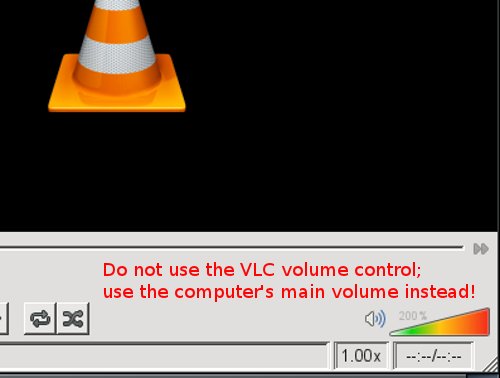
Once VLC is properly configured for clear audio at the proper volume, it needs little further adjustment. Bear in mind that some sound systems used for classrooms, auditoriums, or other venues can be tricky in terms of spectral qualities. Consider enabling and configuring the VLC equalizer if there are problems with audio being too bassy, shrill, or otherwise in need of spectral tweaking. Then make all further adjustments using the computer system volume control. Any changes made to the VLC volume control will interfere with the audio dynamics settings.
© 2005 - 2025 AB9IL.net, All Rights Reserved.
Written and curated by Philip Collier / AB9IL.
About Philip Collier / AB9IL, Commentaries and Op-Eds, Contact, Privacy Policy and Affiliate Disclosure, XML Sitemap.
This website is reader-supported. As an Amazon affiliate, I earn from qualifying purchases.